Licensing & support
How licensing works
The Gantt Chart is fully functional for free while you evaluate it: every feature works, with no locked or hidden capabilities. Licensing only affects whether an on-visual notification appears in published reports.
- Try everything for free. You can build, test, and demo the complete visual without a license.
- A license removes the notification. Unlicensed visuals display a small license notification. This appears for both report editors and report viewers.
- Licenses are assigned per user. Everyone who edits or views a report containing the visual needs their own license. Generally, that's everyone the report is shared with.
- 30-day free trial. Activating a trial removes the license notification for 30 days so you can pilot the visual in a real, shared report.
Because the visual keeps working whether or not it's licensed, licensing is about presentation (removing the notification for your audience), not about unlocking features.
The notification is never shown on the visual's landing page, and never burned into PDF or PowerPoint exports — so an unlicensed visual won't spoil an exported document.
Two ways to license
| Track | Use it when | How |
|---|---|---|
| AppSource licensing | Power BI Desktop and the Power BI Service — the standard case | Buy or trial on the Marketplace; an admin assigns licenses to users |
| Direct license key | Report Server, Embedded, Publish to web, SharePoint, sovereign clouds, offline | Buy a key from ChartPad and paste it into the visual |
Not sure which one you need? The licensing page on chartpad.io walks you through it in four questions.
AppSource licensing
Getting a license
- Start a free trial: available on the Microsoft Marketplace.
- Purchase a license: available on the Microsoft Marketplace.
Assign licenses to users
After you have purchased one or more licenses, you need to assign them to your users or Active Directory groups. Assign the Gantt Chart license to everyone who edits or views the report (generally, everyone it's shared with):
- If you bought the licenses, you can assign them yourself — including to other people — without needing an admin role.
- If someone else bought them, you need the Global Administrator, License Administrator or User Administrator role.
- To license people by group instead of one at a time, use group-based licensing: see Microsoft's Assign or unassign licenses to a group.
In every case the steps below are the same.
- Sign in to the Microsoft 365 admin center.
- Go to Billing → Licenses and select the Gantt Chart product.
- Click on Assign License and select the users or groups to assign the license to.
- Add the users who need a license, then save to confirm.
For full step-by-step instructions, see Microsoft's guide: Assign licenses to users.
Licenses are cached for the duration of a Power BI session. If a newly-licensed user still sees the notification, have them sign out and back in.
Unassign licenses
Removing a license works the same way:
- Sign in to the Microsoft 365 admin center and go to Billing → Licenses.
- Select the Gantt Chart product.
- Select the users or groups you want to remove the license from, then select Unassign licenses.
The freed license can be reassigned to someone else straight away.
Environments AppSource licensing doesn't cover
Microsoft's AppSource licensing model is not available on these platforms:
- Power BI Report Server
- Power BI Embedded
- SharePoint (Power BI web part)
- Publish to web
- National / sovereign clouds
A Microsoft-managed license can't be applied there. Use a direct license key instead.
Direct license keys
A direct license key is a signed key issued by ChartPad that licenses the visual anywhere — including every environment above. It is verified inside the visual, offline: no network call is made, and nothing about your report or your data leaves Power BI. That's what keeps the visual certification-compliant.
Getting a key
Buy a key at chartpad.io/licensing — keys are sold per visual or as an all-visuals bundle, on an annual or three-year term. See pricing for the current rates. Checkout is handled by Paddle; your key is shown immediately after payment and sent by email.
Get in touch at hello@chartpad.io if you need a quote, a purchase order or an invoice.
Lost your key? Retrieve it at chartpad.io/license-key using the Paddle transaction id from your receipt email. The same id also retrieves the fresh key with the new expiry date after each renewal — worth keeping alongside the key itself.
Entering a key
- Select the visual and open the Format pane.
- Expand the License card.
- Paste your key (it starts with
PBI-) into the License key field. - A Status line appears underneath confirming the result.
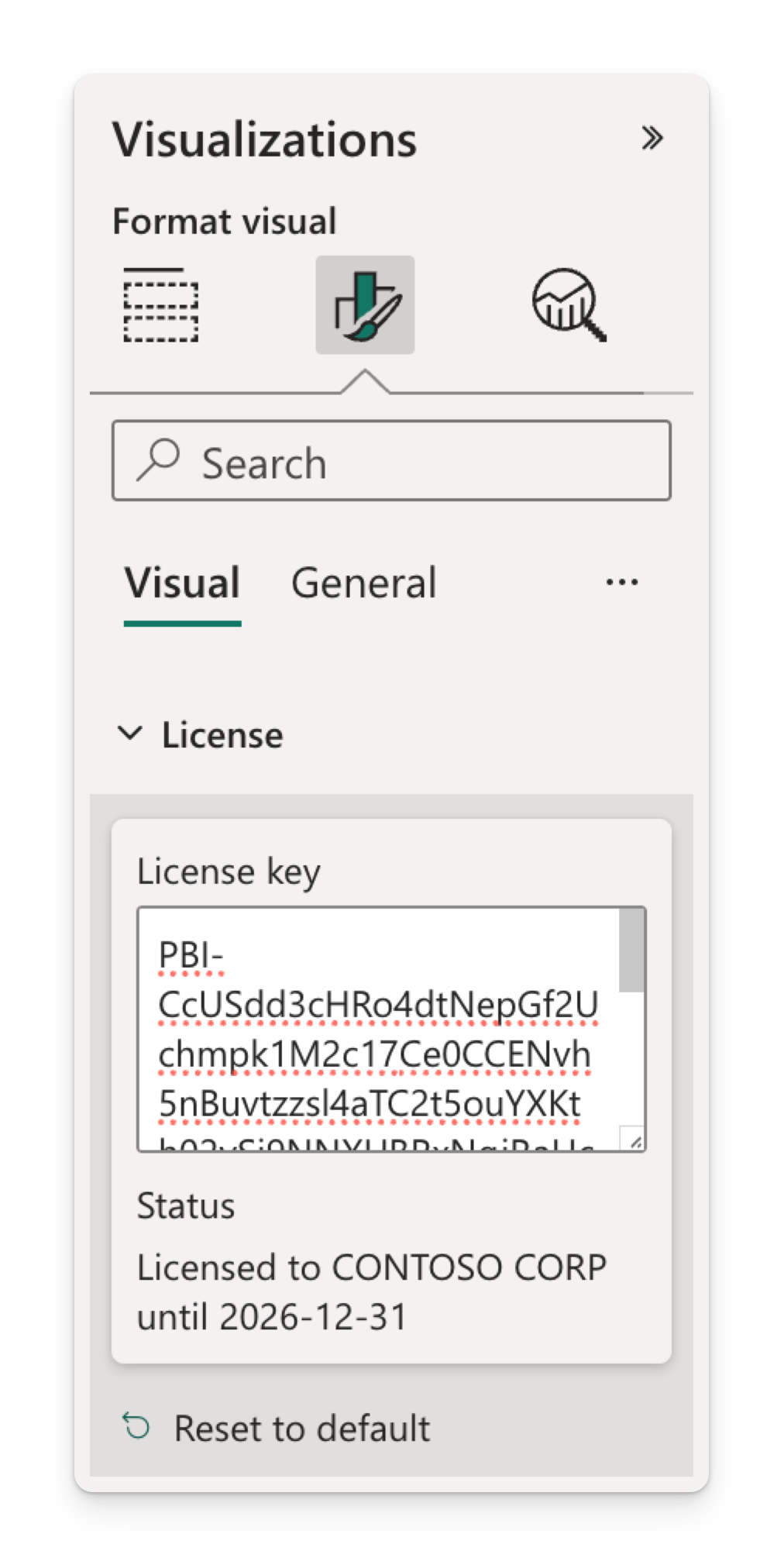
The key is stored with the report, so everyone who opens or views the report is licensed, with no additional configuration required. If you deploy many reports, inject it through a report theme file instead.
Report editors must add the license key to the visual properties each time the visual is added to a report. If the visual is used multiple times in the same report, editors can copy and paste the visual to carry the license key with it.
What the status line tells you
| Status | Meaning |
|---|---|
| Licensed to name until date | The key is valid. The date is inclusive — the key works through the end of that day. |
| Invalid license key | The key is malformed or its signature doesn't verify. Check for a truncated copy-paste. |
| License expired on date | The key has passed its expiry. Renew it to get a fresh key. |
| This license key is for a different ChartPad product | The key was issued for another ChartPad visual. Product-specific keys only license their own visual; bundle keys license all of them. |
| License verification requires HTTPS | While license key verification can be performed offline in sandboxed environments, the visual still needs to use the browser's cryptography tools that only run on secure origins. Enable HTTPS on your Power BI Report Server. |
Expiry is re-checked while a report is open, so a key that lapses mid-session takes effect immediately rather than waiting for a reload. Renew a few days before the date on the status line.
Supported languages
The visual's interface is localized in twelve languages and follows the language of the Power BI environment:
English · French · German · Spanish · Italian · Portuguese (Brazil) · Portuguese (Portugal) · Dutch · Danish · Norwegian · Swedish · Polish.
Getting help
- In-product: open the Documentation button on the visual's landing page to reach this site (
docs.chartpad.io). - Email support: hello@chartpad.io
- Website: chartpad.io
If you hit an issue, it helps to include your Power BI version (Desktop or Service), the visual version, and a screenshot or a small sample of your data.